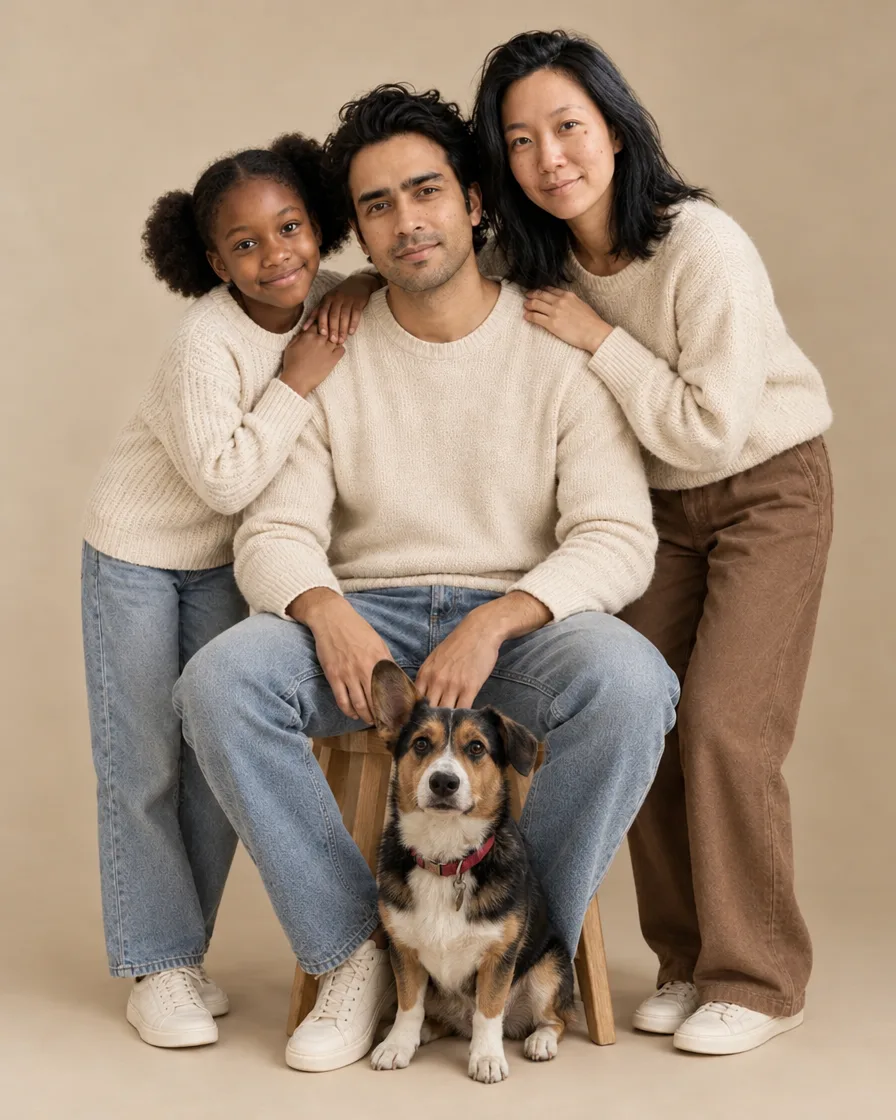
Add a Person to a Photo With AIAdd the one who was missing.
Bring someone who wasn't there into a photo you already have. Everyone else stays as they are, and the new person matches the clothes and the light.
Photo to change
Person to add
One clear photo of each face. JPG, PNG, WebP or iPhone photos.
Free credits to start. No card needed.Your photos stay private
Plan and price first
Not right? Free redo
Or say it in your own words
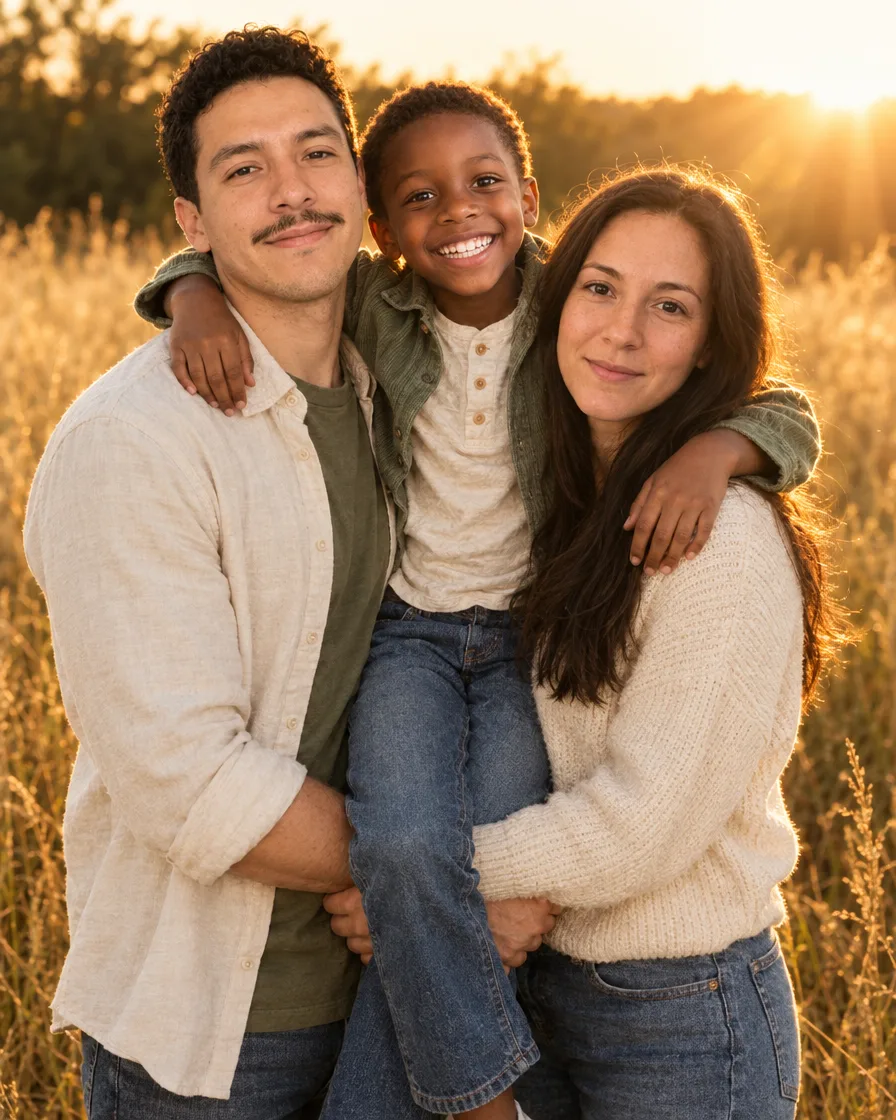
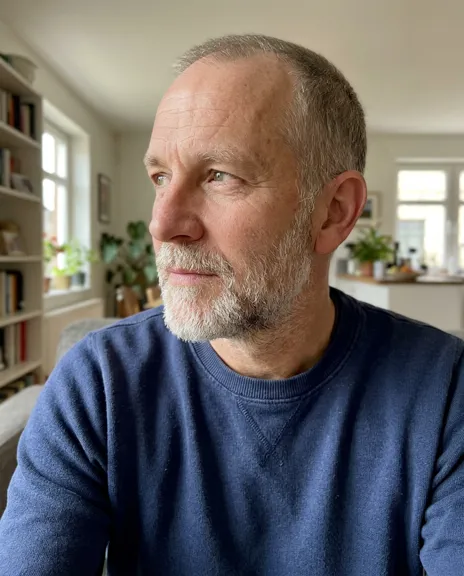
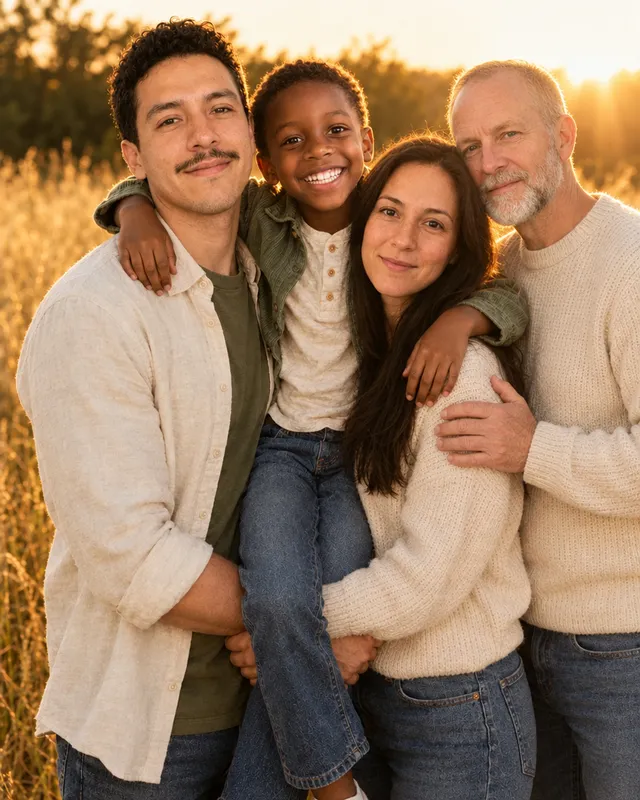
Add a grandparent to a family photo
+
Made from these 2 photos
Pick a style. Or three.
Each style makes one photo. Pick a few and you see the whole plan, and the price, before anything is made.
Every example was made on PicYep
Add a grandparent to a family photo
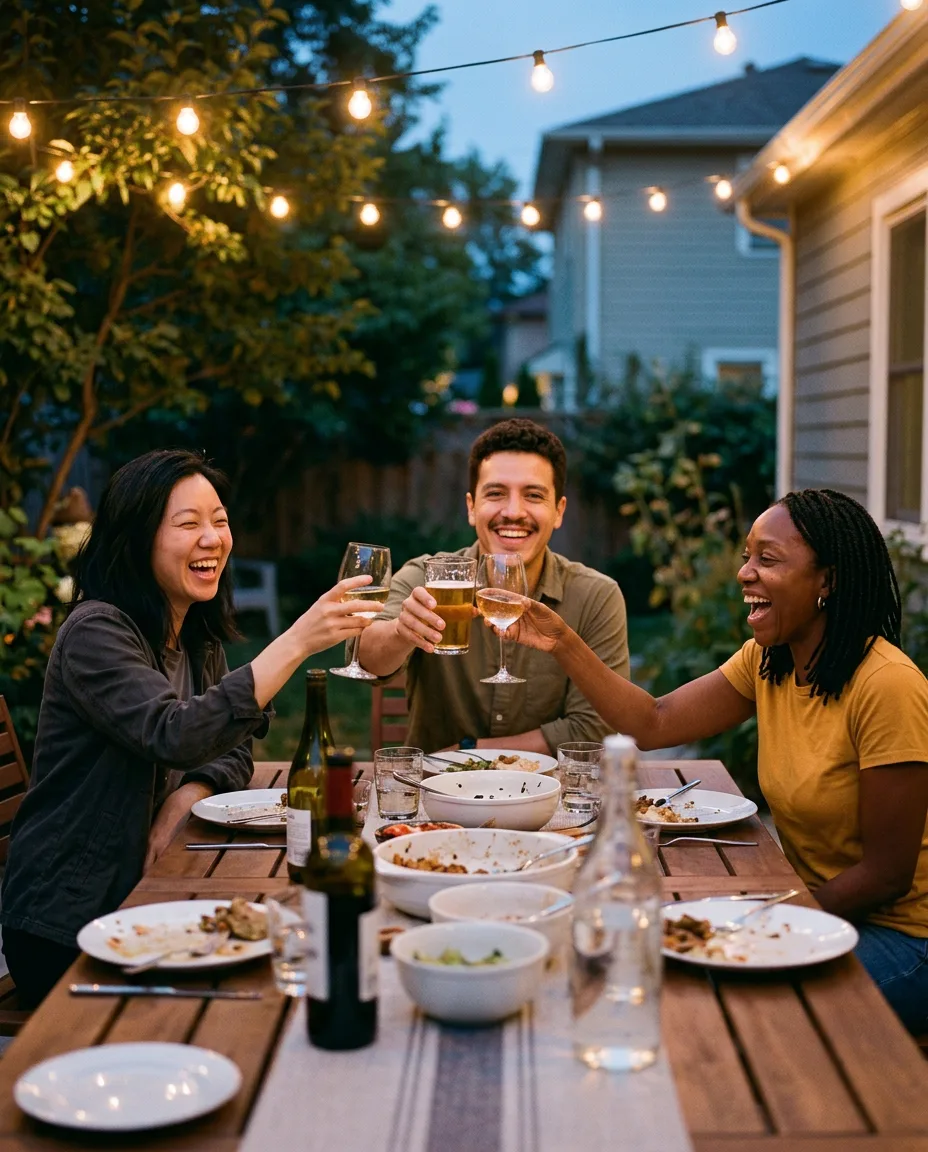
Add a friend to a group photo
Add someone to a black-and-white portrait
In short
PicYep adds a person to a photo you already have: add the photo first, then a photo of each person to bring in, up to 15 at once, or a photo of your pet. The people, the place and the light of your photo stay as they are; the person you add is placed with everyone else, dressed to match and lit like the rest of the picture.
New accounts start with free credits, and no card is needed to sign up. The cost of each photo is shown before you generate, and a request that ends without a photo gets its credits back. Your photos stay private to your account, carry no watermark and are yours to use for personal and commercial work.
The photo stays, the person joins it
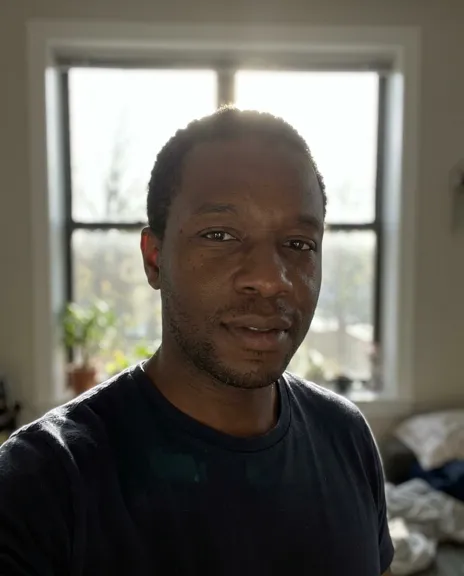
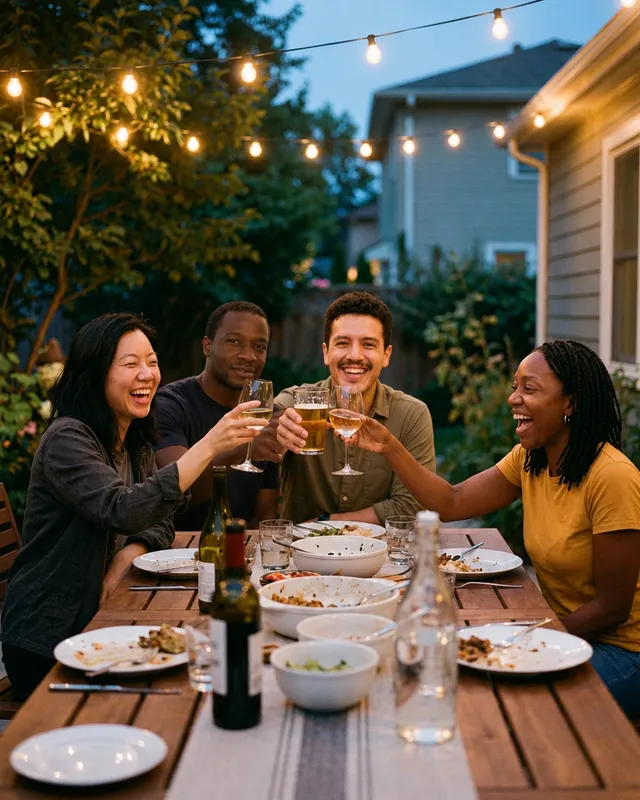
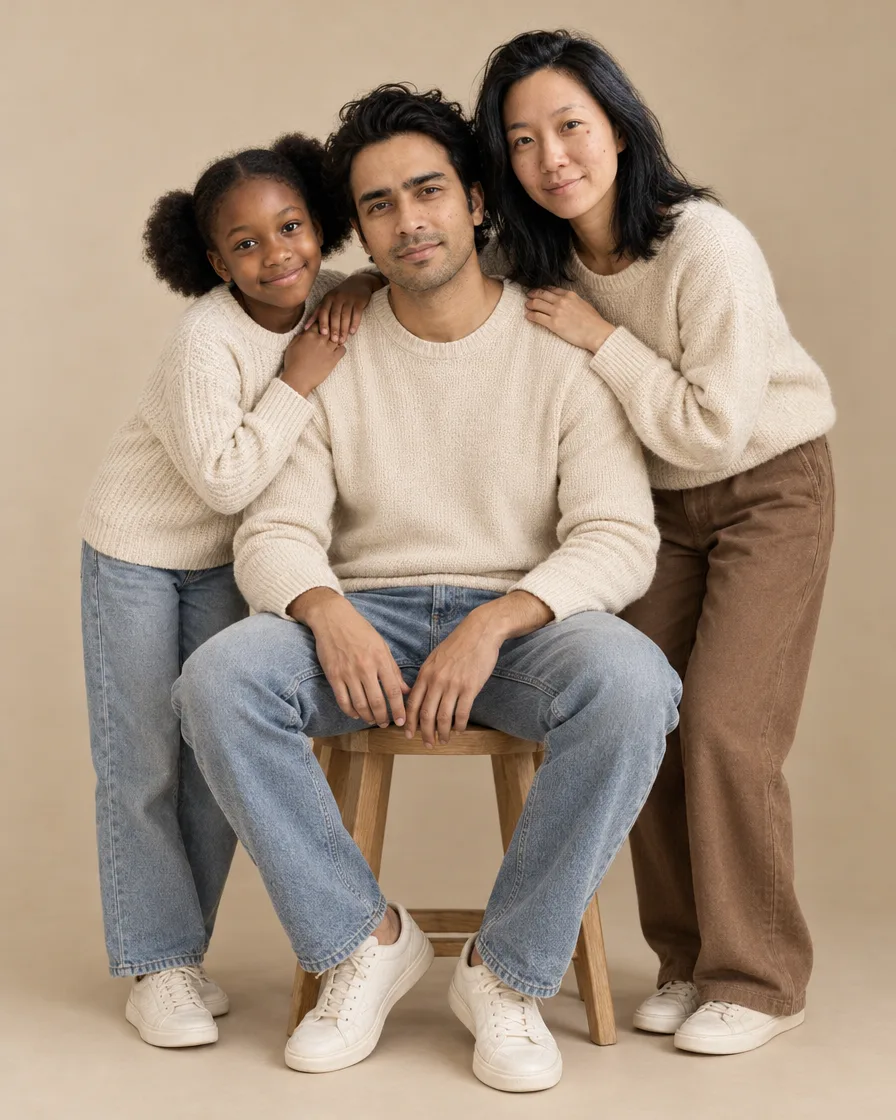
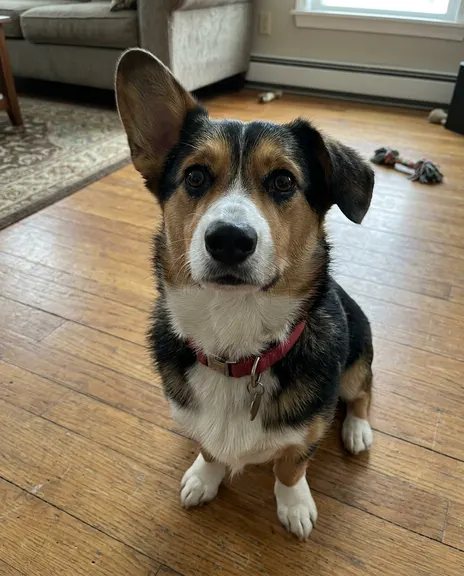
The first photo is the one you already have; the second is the person or pet to bring in. These were made on this page, with nothing retouched afterwards.
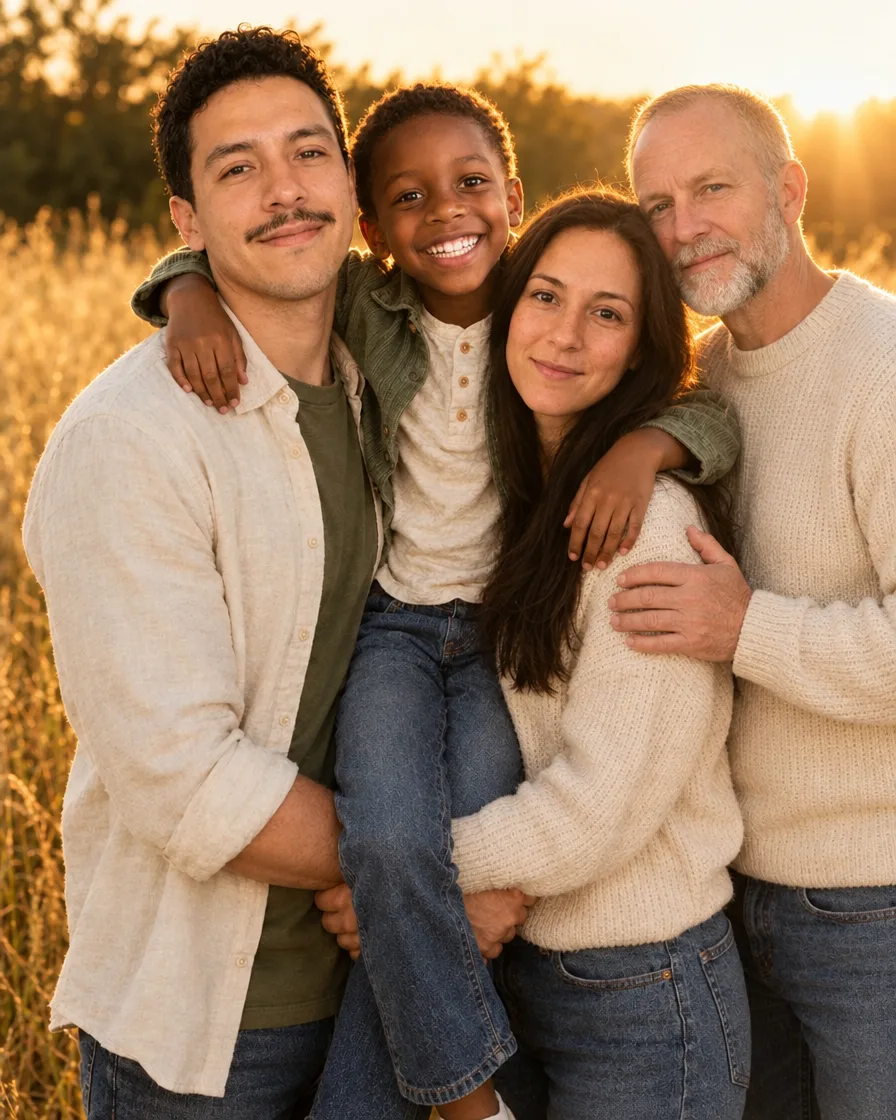
A grandparent who wasn't there, dressed to match
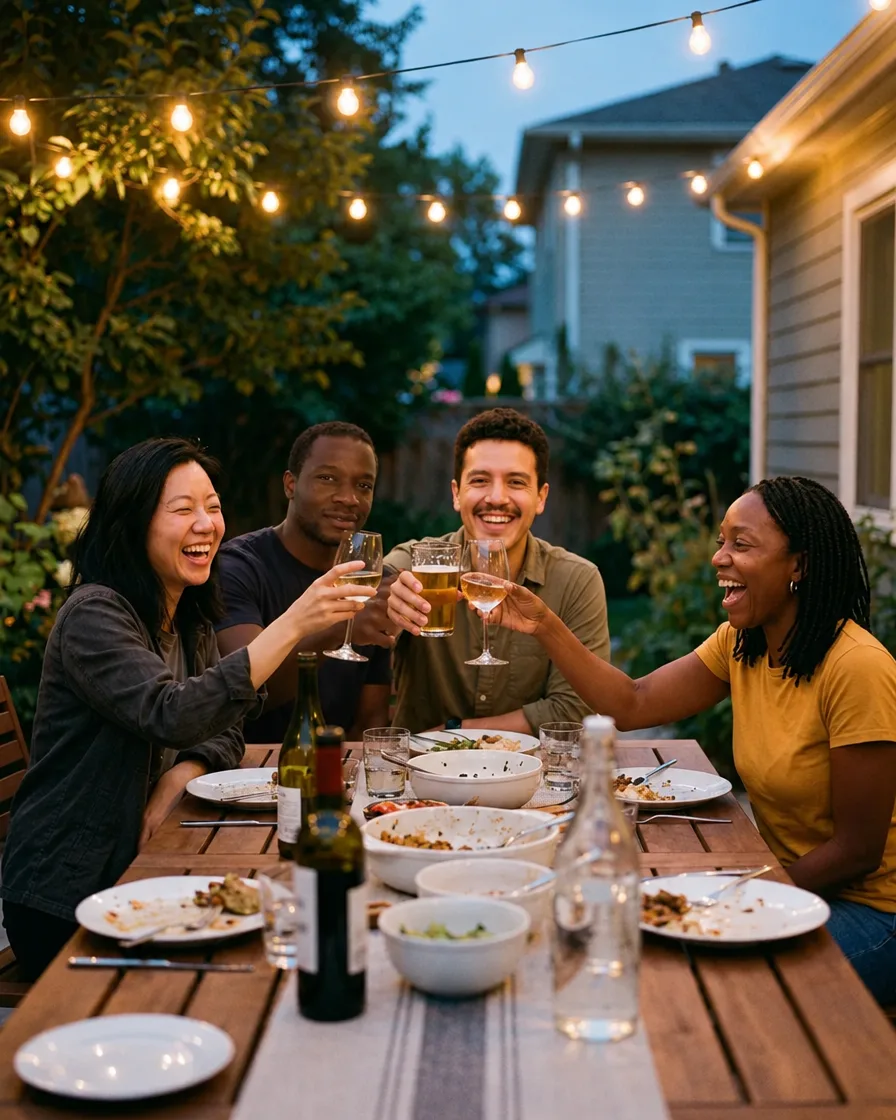
A friend at the table, glass raised with the others
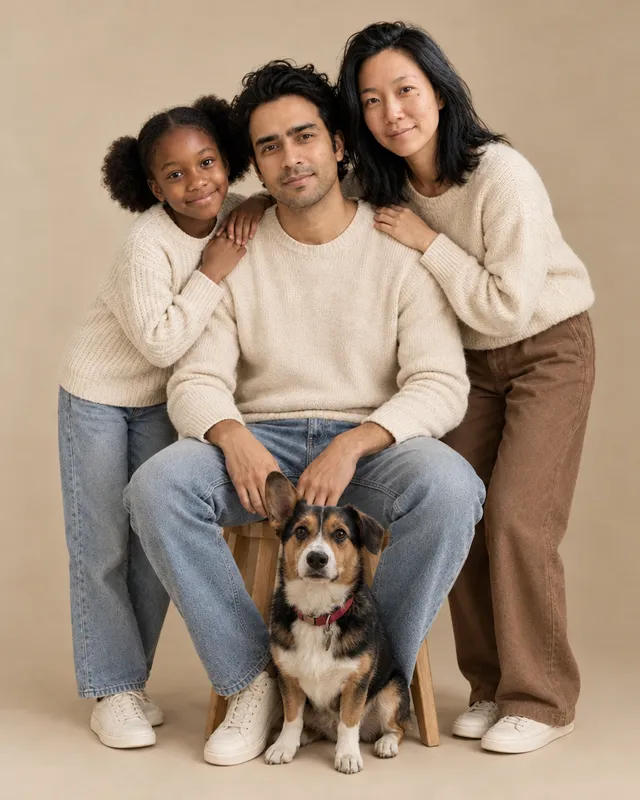
The dog, at the family's feet
The people, the place and the light of your photo stay as they are.
The person you add is dressed and lit to match the rest of the photo.
Made with GPT Image 2.5, one of the models that kept faces closest when we tested eight.
Not right? Mark it and make it again for free, once a day. No watermark, yours to use.
Add a person to a photo: examples
Each one started from the photo on the left and a photo of the person or pet to add, with the words shown under it.
Add a grandparent to a family photo
“Add the man from the second photo to the first photo. Keep everything already in the first photo exactly as it is: the same people, faces, expressions, poses, clothes, background, light, colors and framing. Place him with the family as if he had been there: standing just behind them with an arm around them, smiling at the camera, dressed to match them in a soft cream knit sweater and denim, lit by the same golden sunset light from behind, with the same warm tones and focus. Keep his face, features, skin tone, hair and age exactly as in his photo, the same person. Photorealistic, one seamless photo.”
“Add the man from the second photo to the first photo. Keep everything already in the first photo exactly as it is: the same people, faces, expressions, poses, clothes, background, light, colors and framing. Seat him at the table with the friends as if he had been there all evening, raising a glass with them and laughing, in a casual shirt that fits the evening, lit by the same warm string lights. Keep his face, features, skin tone, hair and build exactly as in his photo, the same person. Photorealistic, one seamless photo.”
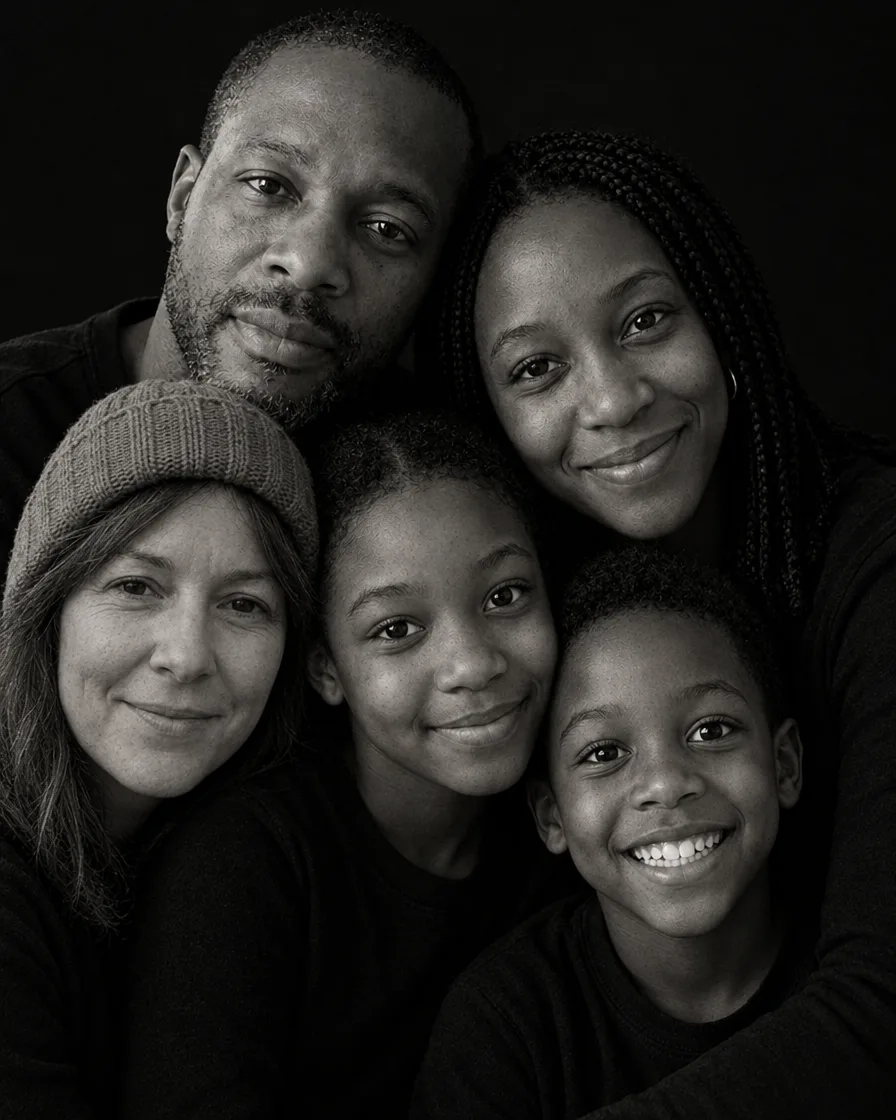
“Add the woman from the second photo to the first photo. Keep everything already in the first photo exactly as it is: the same people, faces, expressions, poses, clothes, background, light, colors and framing. Place her in the tight family cluster as if she had been there, her head close to theirs, in a simple black top like the others, in the same black and white tones, soft side light and fine grain. Keep her face, features, hair and age exactly as in her photo, the same person. Photorealistic, one seamless photo.”
“Add the dog from the second photo to the first photo. Keep everything already in the first photo exactly as it is: the same people, faces, expressions, poses, clothes, background, light, colors and framing. Place the dog sitting on the floor at the family's feet, looking at the camera, in the same soft studio light with a natural shadow on the floor. Keep the dog's breed, coat colors, markings, ears and face exactly as in its photo, the same dog. Photorealistic, one seamless photo.”
Every example was made on this site and is shown as it came out, with nothing retouched. The people and pets in the photos they were made from are AI-generated, not real.
How to add a person to a photo
01
Add the photo you have
The family photo, the group photo, the wedding photo: whichever one someone is missing from. Add it first.
02
Add a photo of the person
A clear photo of each person to bring in, or of your pet. Then pick an example, or say where they should be: beside the grandmother, at the end of the table.
03
Check the price and download
The cost in credits is on the button before you send. Download the original file when you have the one you like.
Who to add
The photos people most often ask to have someone added to.
The family member who couldn't come
A grandparent abroad, a sibling on shift: add them to the family photo, dressed in the family's colors.
Add an older photo of someone who has passed away to a family photo, a wedding or a graduation.
Your photo stays as it is
The photo you add first is the one that is changed, and only by the person you bring in: the faces, poses, clothes, place and light of everyone already there stay as they were. The new person is placed among them, dressed to match and lit like the rest of the picture.
To make a new family portrait from a separate photo of each person, use the family photo generator.
Add someone to a family photo
A grandparent who lives abroad, a parent away on duty, a sibling who was at work that day: add the family photo and a photo of them, and they are in it with everyone else.
For a new portrait of the whole family in a style of your choice, the family photo generator puts everyone together from one photo of each person, up to 16 photos.
The clearer the photo you add first, the better the result. Phone photos are fine.
02
A clear photo of the person
One person per photo, facing the camera, with nothing across the face.
03
Say where they go
Beside the grandmother, at the end of the table, behind the children: a few words place them.
04
Make a few takes
Every attempt is different. Make two or three and keep the best one.
Questions about adding a person to a photo
How do I add a person to an existing photo?
Add the photo you have first, then a photo of the person to bring in, and pick an example or say where they should be. PicYep puts them into the photo with everyone else and keeps the rest of the picture as it was.
Can AI add people to a photo?
Yes. From a photo of the person, it draws them into your photo in the same light, at the same scale and in clothes that match the others, so it looks like one picture taken on the day.
Is it free to add a person to a photo?
It is free to try. A new account starts with free credits. No card is needed to sign up. It works in your browser on a phone or a computer, with no app to download.
Will the rest of my photo stay the same?
Yes. The people already in the photo, their faces, poses and clothes, the place and the light are kept as they were. Only the person you add is new.
Will the person I add look like themselves?
Their own photo guides how they look: face, hair, glasses, build and age. PicYep uses GPT Image 2.5, one of the models that kept faces closest when we tested eight. A sharp, front-facing photo gives the closest match, and if one isn't right you can mark it and make it again for free, once a day.
Can I add more than one person?
Yes. Add the photo first and then a photo of each person to bring in, up to 15 at once.
Can I add someone who has passed away to a photo?
Yes. Add the photo, then an older photo of the person you miss, and say where they should be: beside you at the wedding, with the family in the garden. Their photo guides how they look. A clear, front-facing photo works best; an old print photographed in daylight is fine.
What happens to my photos?
PicYep does not train AI models on your photos and does not sell them. Full-size photos and the photos you upload are kept in private storage with no public address, and you can delete them at any time.
Your photos are not used to train AI models. Originals are kept in private storage, and you can delete them at any time. Privacy policy