AI headshots
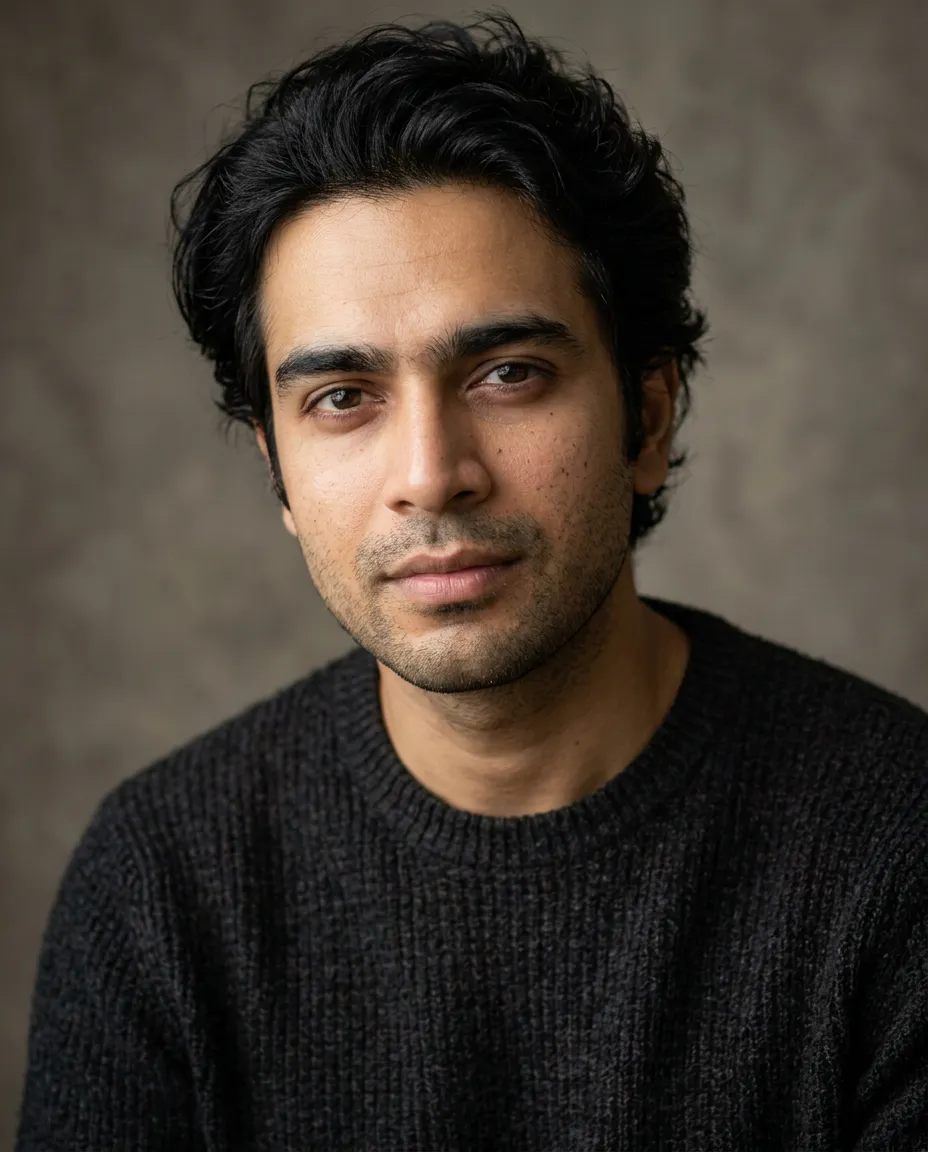
“A natural professional headshot, charcoal knit sweater, warm gray studio backdrop, soft window light, relaxed expression, realistic skin texture, portrait photography.”
Use this recipePrompt guide
An AI photo generator listens best when you describe a shot the way a photographer would. Here is the whole method on one page.
Or copy a ready-made prompt from the librarySix ingredients, in roughly this order. Hover each one to see where it lives in the prompt.
A relaxed professional headshot, charcoal knit sweater, warm gray studio backdrop, soft window light, calm, confident expression, realistic skin texture, 85mm portrait
Who is in the shot and what kind of photo it is.
One or two clothing details are enough.
The backdrop or place, kept simple.
The single biggest lever for realism.
Expression and feeling, in a few words.
Texture and lens cues that read as photography.
Open one in the generator, then change a word or two to make it yours.
“A natural professional headshot, charcoal knit sweater, warm gray studio backdrop, soft window light, relaxed expression, realistic skin texture, portrait photography.”
Use this recipe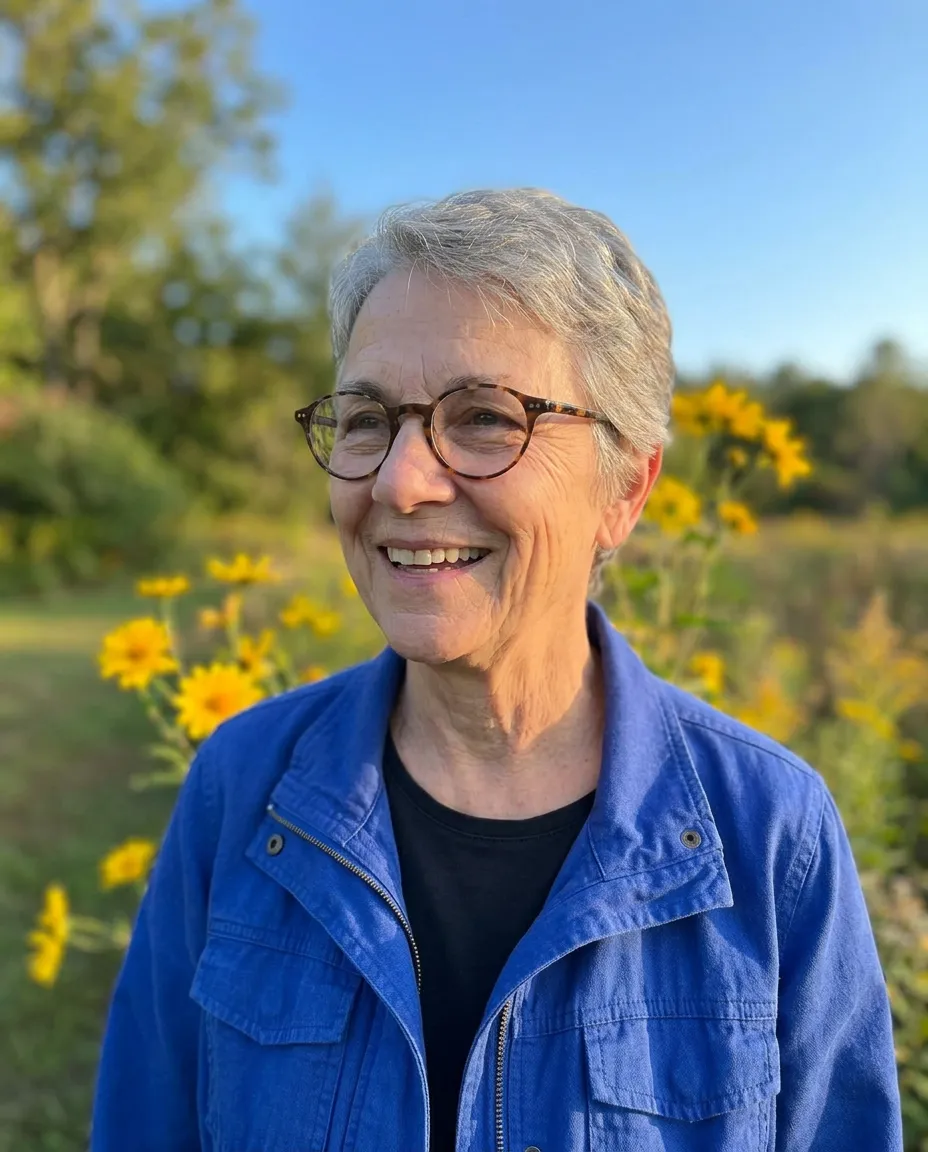
“A candid portrait with yellow flowers, a cobalt blue jacket and soft afternoon light, clear blue sky, joyful natural expression, realistic skin texture.”
Use this recipe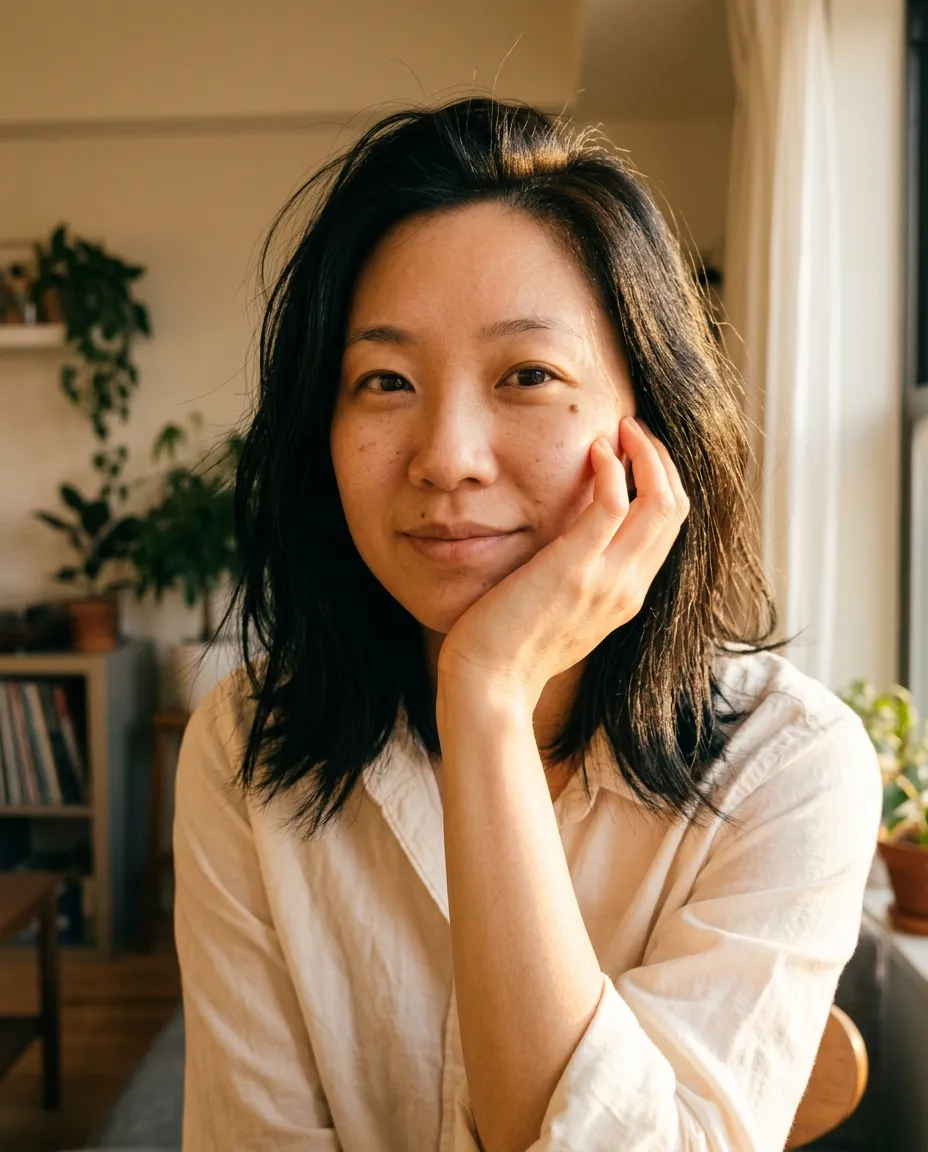
“A warm sunlit portrait, ivory cotton shirt, face resting gently on one hand, golden afternoon light, peach tones, candid expression, natural skin texture.”
Use this recipeThese are the exact words the photos beside them were made from, with a photo of the person added.
“Soft window light” or “golden hour backlight” does more for realism than any adjective.
“Calm and confident” beats a list of five feelings that pull in different directions.
Words describe a look; a reference image guides the face, pose or composition.
Keep the prompt that almost worked and change one ingredient at a time.
Five steps, and what happens at each.
A new account starts with free credits. Photos can be made once your email is confirmed.
Say who is in it, what they wear, where they are and in what light. Or open one of the looks and change a few words.
Only if you want to be in the picture. Your photo guides the face; it is not copied, and the result is a new photo.
The cost in credits is on the button before you send. You can leave the page: the photo is saved when it is ready.
Every photo lands in Your photos, private to your account. Download gives you the original file; a share link shows one photo until you turn it off.
The photo you give decides more than the words do. One good photo beats several weak ones.
Use a photo with only you in it, so it is clear whose face to follow.
Sharp and evenly lit, such as daylight by a window. Sunglasses, a mask, a hand or hair across the face leave the model guessing.
Looking at the camera or slightly to one side, from about arm's length. A small face far away, or a steep angle, gives it little to work from.
The result follows the age, hair and glasses in the photo. Heavy filters and beauty modes carry over too.
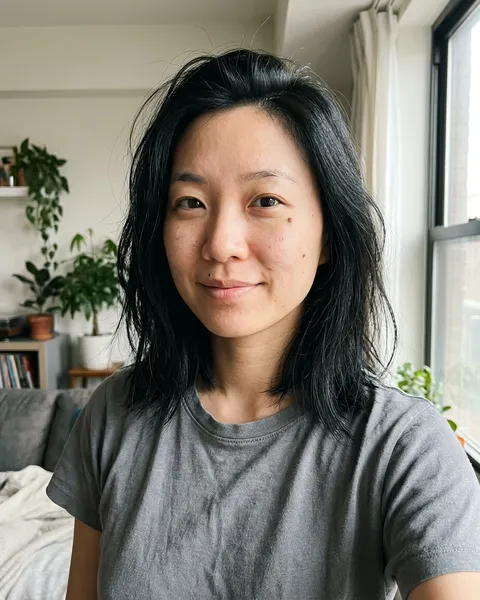
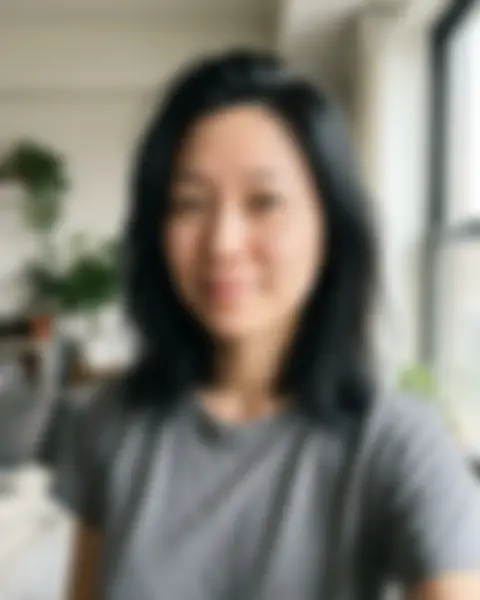
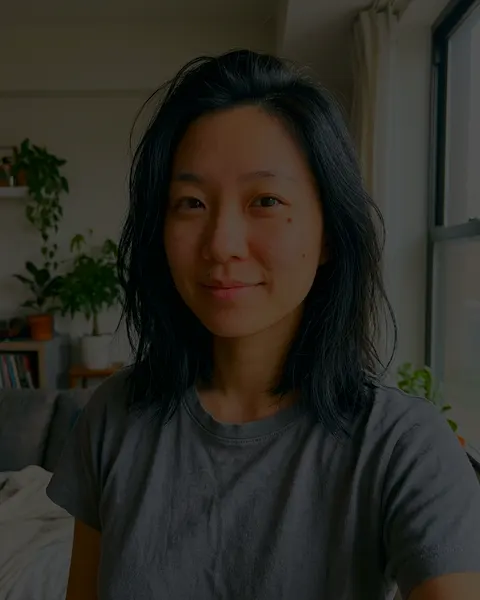
The people in these examples are AI-generated. The blur and the dim light were added afterwards to show the difference.
JPG, PNG or WebP, up to 10 MB each. A phone photo is turned the right way up, and its camera details, such as where it was taken, are removed before it is sent. Use only photos of yourself, or of people who have agreed.
Up to 16 in one request, fewer on some models. The generator tells you how many the model you chose can work from.
One for the person, one for the clothes, one for the place or the style. Two photos doing the same job compete.
Photos are sent in the order you add them. Write, for example: the person from the first photo, wearing the jacket from the second.
Several photos of the same person help. To put different people in one picture, add a photo of each and say who is who by their order. In our own tests, groups of two to six came out complete every time, each person from their own photo. A group photo counts as one photo, so a bigger group fits too: we made pictures of eight from a photo of six and two more.
Remove the photo that is being misread, or say in the description what to keep from it and what to ignore.
The defaults are a good place to start. Change one thing at a time, so you can tell what made the difference.
It suits most portraits and follows a description closely. The model menu shows what each model costs.
Models differ in how they use your photo. In our own tests Nano Banana 2.1 was the freest with pose, expression and scene; Seedream 5.0 Flash and FLUX 3 stayed closest to the photo you gave.
Larger sizes cost more on every attempt. It is cheaper to find the photo you like at 1K, then enlarge that one with Upscale.
1:1 or 4:5 for a profile picture, 16:9 for a banner. A photo you like can be widened afterwards with Expand.
Realistic photos of people and pets: professional headshots, natural portraits, photos for social profiles, holiday portraits, pet portraits and group photos. One clear photo to work from is enough, and a whole group can share one picture, each person from a photo of their own.
For an ID or passport photo, use a real photograph: official rules ask for one that has not been altered.
What each situation means, and what to do next.
Your photo guides the result. For a closer match, use a sharper photo that faces the camera, ask for fewer changes at once, or switch model: some follow your photo more closely than others. Every attempt is a new take and uses credits, so change one thing at a time.
The cost follows the model, the size and the number of photos, and is checked again when you press Generate. Look at the new cost on the button and press Generate again. Nothing is charged before that.
You can leave the page. The request carries on, and the photo is saved to Your photos when it is ready. If there is no result after 10 minutes, the request is ended and its credits are returned automatically.
Its credits are returned automatically, and your description stays in the editor so you can send it again. The return is listed in your credit history.
Descriptions are checked before anything is charged. A request that is refused, or that could not be checked at that moment, is not started and costs nothing. Reword it, or try again in a moment. If you think an ordinary request was refused by mistake, send us what you typed.
Open the photo in Your photos and download it again. You get the original file: usually a PNG for a photo, an MP4 for a clip. If it still fails, write to us with the request's ID.
Under Settings, Credits lists every charge and every return with its time, and Generation Tasks lists every request with what it cost. If they do not match what you expected, write to us with the request's ID.
Settings, then Generation Tasks. Open the request: its ID is in the details.
Write to support@picyep.com, or open a ticket under Settings when you are signed in. Tell us the request's ID and what you expected to happen. We usually reply within 2 business days. We never ask for your password or your full card number, so please do not send them.
Open a ticketStart from a look, swap in your details, and keep the shot you love.