Upload your photo
A JPG, PNG or WebP from your phone or computer. You can also send it from your phone with a QR code.
Image editing
Upload your photo, paint over the person you want gone, and get the same photo without them. Everything you do not paint stays exactly as it was.
Your photos stay privateUpload a photo and choose a model. Your result, comparison and download will appear here.
Drag the line to compare. Each was made on PicYep from the photo on the left.
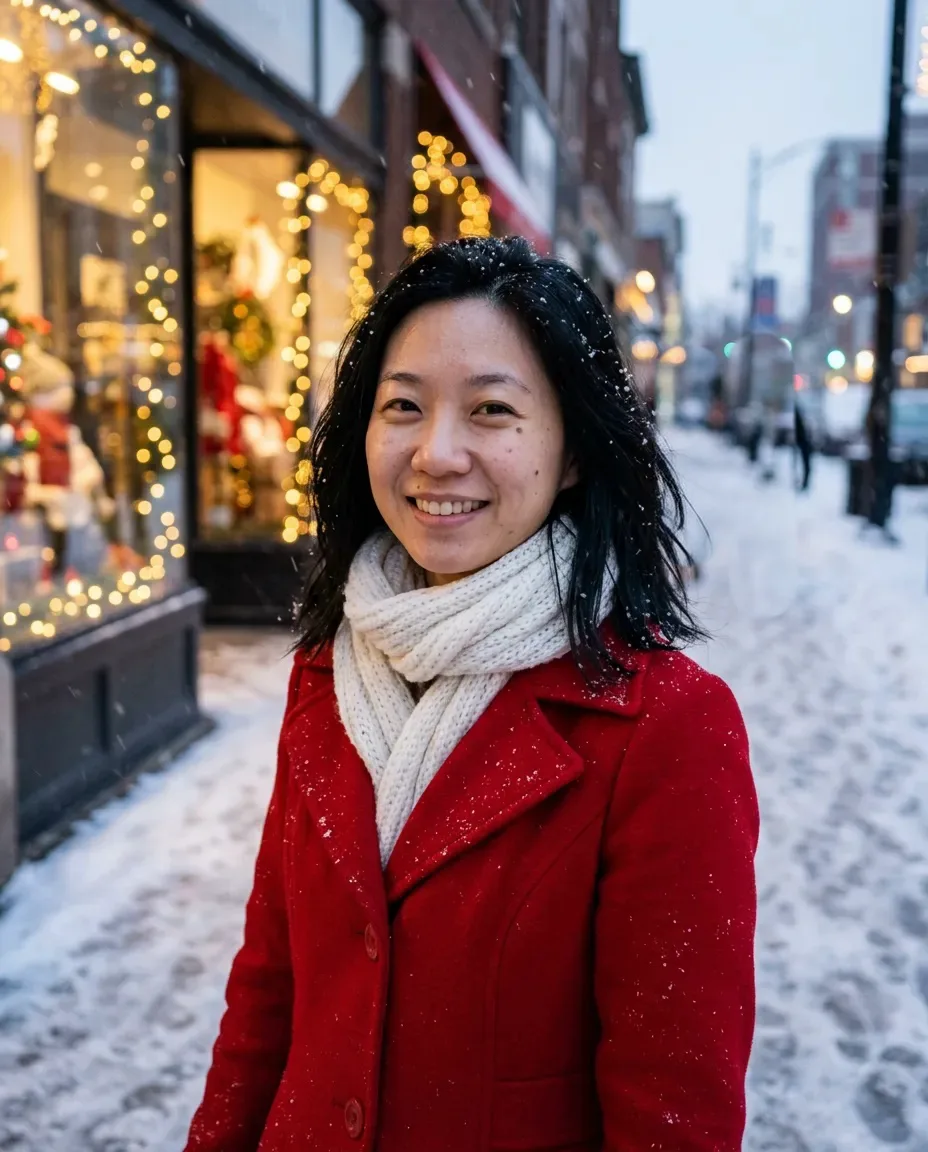
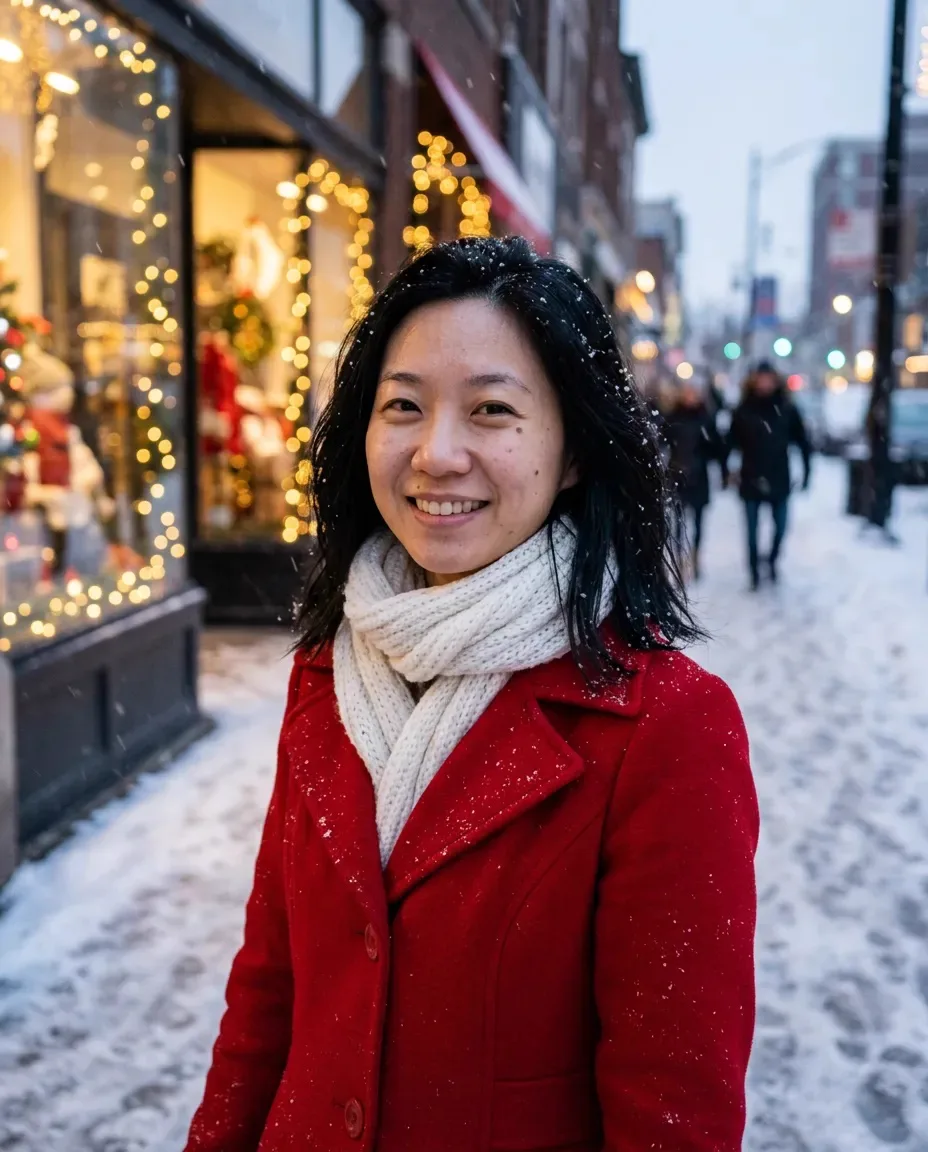
A JPG, PNG or WebP from your phone or computer. You can also send it from your phone with a QR code.
Brush over the whole person, with their shadow. Zoom in for hands, hair and feet at the edges.
The background behind them is filled in, and the photo is saved to My photos as well.
The photos people most often bring here.
Clear the crowd behind you at a landmark, a beach or a busy street.
Someone who walked into the frame at the wrong moment.
Keep the memory and the place, without them.
Make a photo of you on your own, for a profile or a CV.
Take out the guest who blocked the couple or the cake.
Remove passers-by before you post a listing or an ad.
Many erasers redraw the whole picture, so faces, skin and colours shift a little everywhere. PicYep takes the new background only from the area you painted and puts the rest of your photo back on top, pixel for pixel.
So the people you keep look exactly like themselves, and the photo keeps its sharpness and colours.
Paint over everyone you want gone in one go: two tourists, a whole group in the background, or someone half hidden behind you.
The more of the background you can see around them, the more natural the fill.
Go slightly past the edges of the person, so no outline is left behind.
A shadow left on the ground gives away that someone was there.
Someone in the background is filled in more convincingly than someone filling half the frame.
For a crowd, remove a few people, then open the result and remove the next ones.
Upload the photo, paint over the person and their shadow, and press the button. The area you painted is filled with the background that would be behind them, and you can download the result.
No. Everything outside what you painted is copied back from your photo, pixel for pixel. Only the painted area is new.
The price in credits is on the button before you start. If the photo does not come out, the credits go back to your account automatically.
The size of your photo, up to 4.5 megapixels (about 2600 × 1700). A larger photo comes back at that size. There is no watermark.
Yes. Paint over all of them before you start, or remove a few at a time and continue from the result.
Yes, including HEIC photos from an iPhone. On a computer you can also send a photo from your phone by scanning a QR code.
Only you. Your photo and the result are kept private in your account, and you can delete them at any time.
Your photos are not used to train AI models. Originals are kept in private storage, and you can delete them at any time. Privacy policy
Paint over whoever should not be there, and keep everything else as it was.